


This page was last revised for version 5.0.10.
Delineation Analysis
Delineations aggregate sections of reconstructions into groups to allow measuring proportions of paths within other structures defined by ROIs or neuropil annotations (e.g., cortical layers, biomarkers, or counterstaining landmarks). Delineation analyses can be applied to disconnected paths, a single cell, or multiple cells. Some of the questions that delineation analyses can answer include:
- Do branching patterns of neurons change along strata (cell layers)?
- What is the total dendritic/axonal length contained within a cortical layer?
- Do branches near a lesion site differ from branches further away from it?
- Are there morphological differences across subregions of a neuron’s receptive field?

You can use the MouseLight dendrites demo dataset to follow the delineation tutorials. While this dataset does not include counterstaining images, it can still be used for both ROI-based and Atlas-based delineations:
- Open File › Load Demo Dataset… and choose MouseLight dendrites (Reconstructions only)
- Right-click on the Display Canvas and choose Pause SNT from the contextual menu
- Follow the instructions below
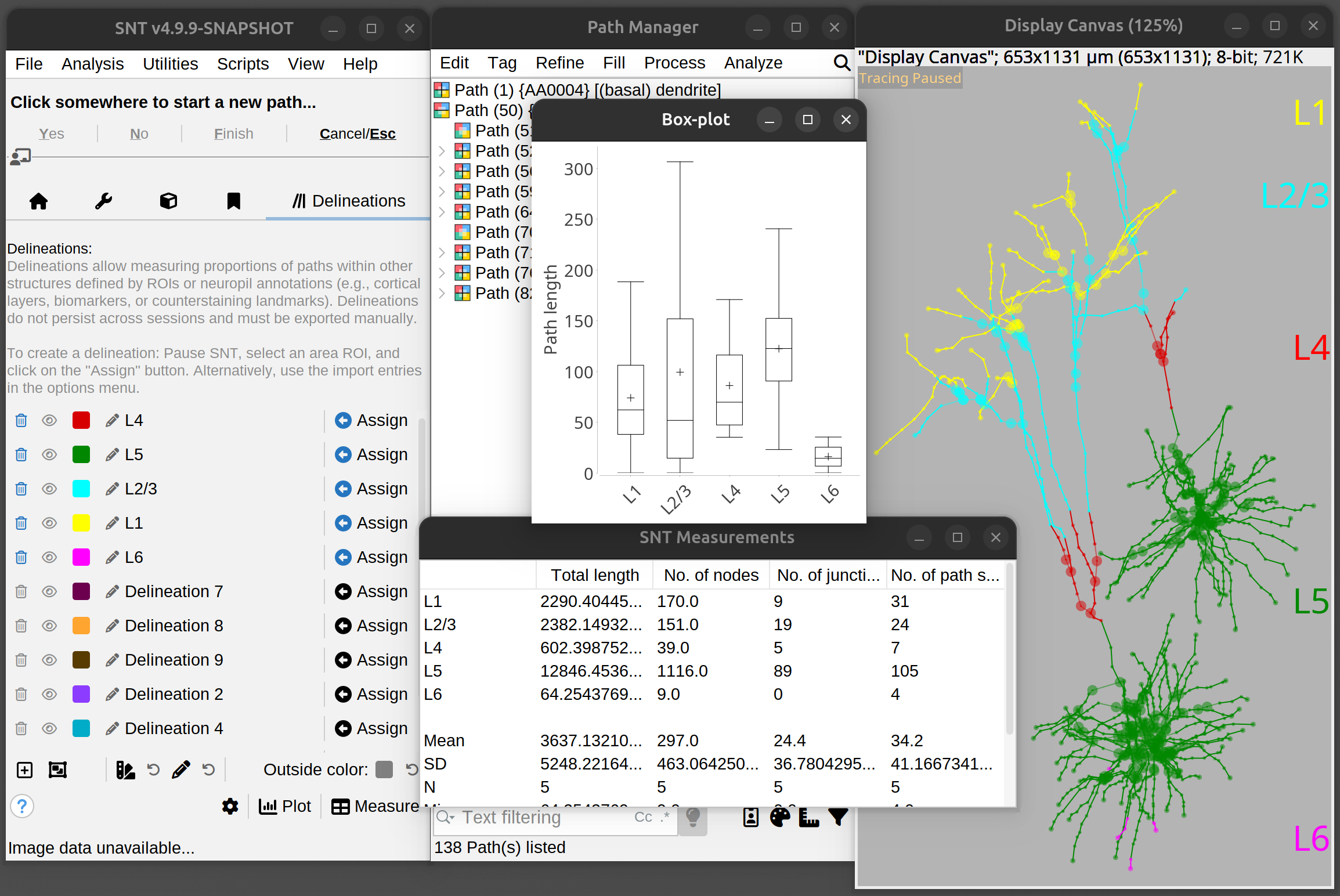
Creating Delineations from ROIs
The most common way to generate delineations is by means of ROIs:
-
Activate the Delineations tab in the main dialog
-
Pause SNT by right-clicking on the image and choose “Pause SNT” from the contextual menu
-
Create an area ROI. Any area ROI is supported (freehand, polygon, wand-defined, rectangular, oval, etc.)
-
Press the Assign button. Sections of paths with XY coordinates contained by the ROI are colored by the delineation label. Note that assignments propagate to all Z-coordinates within the ROI
-
Optional: If you prefer, press the icon and type a new label in the name field You can also change the delineation color by clicking its color tag
-
Repeat this process as needed until all paths of interest have been tiled by a delineation. If needed, visibility of previously assigned ROIs can be toggled using the button
-
Proceed to Measuring Delineations
ROIs generated programmatically or in bulk outside SNT can be applied in a single step using Import Assignments from ROI Manager from the Options (gear) menu. This command will parse each area ROI in the ROI Manager as an assignment ROI. The delineation name and color will be retrieved directly from ROIs that have been renamed or colored (either stroke or fill color).
Creating Delineations from Atlas Annotations
Delineations can also be created from neuropil annotations using the Import Assignments from Atlas Annotation option from the Options (gear) menu. In this case delineations are created from selected brain compartments associated with the cell(s) being analyzed. Note that this requires cells to be tagged by atlas annotations. Currently only cells downloaded directly from the MouseLight database fulfill this criterion.
Creating Delineations from Label Images
Delineations can be imported from segmentation (label) images produced by tools such as Labkit, Weka, cellpose, or similar. Each unique non-zero integer value in the label image becomes a delineation, with path nodes assigned to whichever label they overlap. To import:
-
Open the label image in Fiji. The image should contain non-negative integer pixel values, with 0 as background. Its spatial dimensions must match those of the tracing image
-
In the Delineations tab, choose Import Assignments from Label Image from the Options (gear) menu
-
If multiple candidate images are open, a dialog allows you to choose which one to import. Hyperstacks are excluded; only the first channel/frame of multi-dimensional images is considered
Each label value is mapped to a new delineation entry. Path nodes whose coordinates fall within a labeled region are assigned to the corresponding delineation. Nodes outside all labels remain non-delineated.
SNT validates the selected image before importing: it must contain only non-negative integers with a bounded number of unique classes (≤ 500). If the image dimensions do not match the tracing image, a warning is displayed. Nodes whose coordinates fall outside the label image bounds are skipped.
Exporting Delineations as Label Images
Delineation assignments can be exported back to a label image using Export Assignments to Label Image from the Options (gear) menu. This generates a new image in which each voxel within a traced neurite is labeled by its delineation assignment. The export uses tube-based rasterization, filling each path’s volume based on node radii. Each delineation is assigned a unique positive integer label; background voxels remain zero. This is useful for visualizing delineation assignments in 3D, or for downstream analysis in other tools.
Export requires paths to have delineation assignments. If all assignments were made via ROIs or atlas annotations (rather than from a label image), the export still works: it rasterizes whatever assignments exist. The output is a 16-bit image; if there are more than 65,535 unique labels, values may overflow.
Editing Delineations
To re-define a delineation it is sufficient to re-define or re-adjust an existing ROI and press the Assign button. The Options (gear) menu lists commands for rebuilding, restoring, and deleting delineations. Most of the editing operations can be performed through the toolbar at the bottom of the delineations list, including:
- Adds more entries to the delineations list
- Merges two or more delineations into one
- Applies one of the default color schemes to the delineations list
- Enables/Disables direct editing of delineation names
- Non-delineating color widget: Defines the color for non-delineated sections, i.e., those sections that remain “outside” delineated areas
Hierarchical Labels and Level-split Analysis
Delineation names support hierarchical labeling using the : separator. For example, naming three delineations Cortex:L1, Cortex:L2/3, and Cortex:L5 encodes both the parent region (Cortex) and the individual layers. This convention is particularly useful for atlas-imported delineations, where compartments are naturally hierarchical.
When hierarchical labels are present, the Measure and Plot commands prompt for a grouping level before running the analysis. This allows measurements to be aggregated at different levels of granularity without redefining the delineations themselves. For example, with delineations named Cortex:L1:proximal, Cortex:L1:distal, and Cortex:L2/3 three grouping levels are possible:
- Level 1 groups everything under
Cortexinto a single entry - Level 2 groups by layer (
Cortex:L1combines proximal and distal;Cortex:L2/3remains separate) - Level 3 (full) reports each delineation individually
The level-split prompt only appears when at least one delineation name contains the : separator. The Non-delineated and Unaffected paths categories always pass through unchanged regardless of the chosen level.
Measuring Delineations
Measurements are retrieved using the Plot and Measure buttons:
- Plot: Plots distributions of selected metrics. Plotting styles include: Box plots (one delineation per category), multi-series histograms (one delineation per series), or a montage of single-series histograms (one panel per delineation)
- Measure: Reports common metrics to a dedicated table (Total length, No. of nodes, No. of junctions, etc.) across delineations. When delineations were imported from a label image, the table includes additional distance-to-boundary statistics computed via calibrated Euclidean Distance Transforms (EDT): Mean dist. to boundary, Min dist. to boundary, Max dist. to boundary, and Fraction inside (the proportion of nodes with zero distance, i.e., fully contained within the label). These columns are only populated for label-image-based delineations
In addition to defined delineations, plots and tables may include two other categories:
-
Non-delineated: This category corresponds to all the path sections that remained in-between or outside delineations. Non-delineated sections are labeled with the non-delineating color
-
Unaffected paths: This category corresponds to full paths that have no XY coordinates inside any delineation. Unaffected paths retain their rendered colors
Topological constraints may not allow certain metrics to be computed for a particular delineation. E.g., a metric that requires a graph-theoretic tree may not be computed for a delineation defined by a non-contiguous ROI.
Delineation analysis measures aggregate properties of paths within labeled regions (lengths, node counts, distance statistics). To identify specific contact points where paths approach or touch labeled structures, use the Label Proximity Detector, which emits navigable bookmarks or ROIs at individual contact locations.