
Thanks to ImageJ’s extensibility via plugins, it supports a lot of image formats!
File formats
Life sciences
The OME Bio-Formats plugins provide support for over 130 file formats in microscopy, medical imaging, and related life science formats. Bio-Formats is included with the Fiji distribution of ImageJ. See also the Bio-Formats list of supported formats.
DICOM
ImageJ has some built-in support for the DICOM format, and there are also plugins for working with DICOM files. See the DICOM page for full details.
HDF
The HDF5 update site enables support for reading and writing Hierarchical Data Format image data. Note that HDF5 is a very broad specification; the HDF5 plugin will not support all manner of HDF files, but only those written according to its constraints.
Video
Out of the box, ImageJ has limited support for some video formats such as AVI and QuickTime, and there are also plugins which extend ImageJ’s support for videos. See the Video page for details.
Opening and importing
Use File › Open… for formats supported by your installation. Additional formats may require a plugin and its own import command. See Importing Image Files for the available approaches, including Bio-Formats and image sequences.
Camera RAW files
A camera RAW file can contain compressed sensor samples, capture metadata and an embedded JPEG preview. Choose an importer for the camera format and the output you need: a decoded sensor mosaic for examining samples, a developed color image, or the camera’s rendered preview.
The generic File › Import › Raw… command reads pixel arrays using dimensions, data type and offsets supplied by the user. It does not decode a compressed camera format such as Canon CR3.
For supported Canon CR3 RAW and C-RAW files, the Canon CR3 Sensor Importer provides a Fiji command for importing Bayer samples in native sensor units into a 16-bit image. Its guide includes installation, a sample image, metadata and a separate script for opening an embedded JPEG or developing RGB. Check the guide’s tested camera configurations and Java requirements before installing.
Saving and exporting
File formats
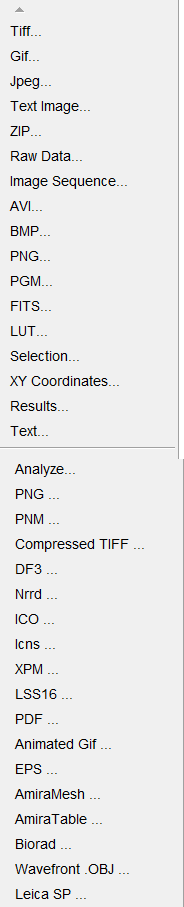
The File › Save (hotkey: S) menu command will save the image as a TIFF file. Other formats are available (see menu image on the right) and can be accessed by File › Save As…. When the “Save As” dialog is opened, ImageJ will enter the image window’s name, plus the appropriate file suffix, as the “File Name”.
Animated GIF… Choosing this option from the “Save As” menu saves a stack as an animated GIF. It is only compatible on RGB or 8 bit images. A more suitable option would be saving as GIF, where the only limitation is that any RGB color stacks must be converted to 8 bit color.
Uncompressed AVI files are exported via File › Save As… › AVI…. The frame rate and compression option of the exported AVI movie is selected in the resulting window. Frame rate can be between 0.1 and 100 frames per second (fps). The compression may be in JPEG, PNG, or uncompressed. Though uncompressed files are large, they should be playable on any PC/Mac without decoder issues.
Flash MX will import uncompressed AVI files. The frame-rate will then be determined by Flash, not the AVI movie file.
Other options for saving and exporting image files are shown in the ImageJ Save As menu. Their procedures are all straightforward.
Image sequences
Image Sequence… This option saves each slice in a stack as a separate TIF file. You will be presented with the option to either name the images numerically or with the slice labels.
Non-image formats
Selection… After drawing an ROI onto an image, the selection’s coordinates can be saved using this option. Once the ROI is deselected, it can be restored at any time in the same location by opening the saved ROI.
XY Coordinates… This option is similar to File › Save As › Selection…, but this choice saves the coordinates of the selection in a text file with two columns for X and Y coordinates.
Results… This uses the information in an active results window and exports it into a text file.
Exporting with Bio-Formats
Files may also be exported to many file types using Plugins › Bio-Formats › Bio-Formats Exporter. As of this writing, the supported file types are:
- Animated PNG
- AVI
- Encapsulated PostScript (EPS, EPSI)
- Image Cytometry Standard (IDS, ICS)
- Java source code
- JPEG
- JPEG-2000
- OME-TIFF
- OME-XML
- QuickTime
- TIFF
See the Export column of the Bio-Formats list of supported formats for an up-to-date list of formats which can be exported.
See also
- The ImageJ Documentation Wiki page FAQ: Which file formats are supported by ImageJ (though it is outdated).