

Canon CR3 Sensor Importer opens supported Canon RAW and C-RAW files as a Bayer sensor image in Fiji. Each pixel contains one decoded sample in native sensor units, stored as an unsigned 16-bit value. This gives access to the sensor mosaic before cropping, black-level correction or demosaicing.
The plugin is part of Photographer. Its update site also supplies the Java ImageIO reader used by the color-image example below.
Choosing an output
| Output | How to open it | Pixel data |
|---|---|---|
| Sensor mosaic | File › Import › CR3 Sensor Data… | One Bayer sample per pixel in an unsigned 16-bit image, including the masked sensor margins. Useful for inspecting the decoded sensor values. |
| Camera JPEG | Run the color example with Develop RAW to RGB cleared. | The camera’s embedded color preview, when present. This does not require decoding the RAW sensor stream. |
| Developed RGB | Run the color example with Develop RAW to RGB selected. | A demosaiced image from RAW or C-RAW: 8-bit sRGB per channel, cropped to the active area and oriented using EXIF metadata. Color reproduction remains experimental. |
The sensor image is displayed in grayscale because each Bayer site holds one
sample under a color filter. It is not a conversion of the camera’s color image
to grayscale. For the verified 14-bit layouts, a sample such as 2048 remains
2048; 16-bit storage does not add sensor precision or scale the values to fill
the 16-bit range. With C-RAW, these are the samples reconstructed from the
lossy compressed capture.
Installation
Use Fiji with Java 21 or later. Fiji Latest is the appropriate starting point; the Java 8 runtime bundled with Fiji Stable cannot load this plugin.
- Choose Help › Update… › Manage update sites.
- Enable Canon CR3 Sensor Importer in the list.
- Close the site manager, apply changes and restart Fiji.
If the entry is not listed, choose Add Unlisted Site, use the same name and enter this URL:
https://carstenartur.github.io/Photographer/fiji/cr3/
Run Help › Update… again to receive later versions. The update-site version file identifies the current published build. For offline installation, follow the ZIP installation instructions.
Importing a file
Choose File › Import › CR3 Sensor Data… and select a CR3 file. The image retains full sensor coordinates and margins. The importer leaves black-level subtraction, white balance, cropping, rotation and demosaicing to subsequent processing.
Try a sample image
- Download the original sample-tele.cr3 from the Photographer sample collection.
- Open it with File › Import › CR3 Sensor Data…. This PowerShot G5 X Mark II image opens as a 5632 × 3710, 16-bit image containing 14-bit RGGB samples.
- Choose Image › Show Info… to inspect the camera model, Bayer pattern and available calibration metadata.
- To reproduce the display below, choose Image › Adjust › Brightness/Contrast… › Set and set the display minimum to 2048 and maximum to 6473.
Changing the display limits preserves the pixel values. Leave Apply unused when inspecting or measuring the sensor data, and use Reset to restore the display range. Other exposures may need different limits. Move the pointer over the image to inspect individual pixel values in ImageJ’s status bar.
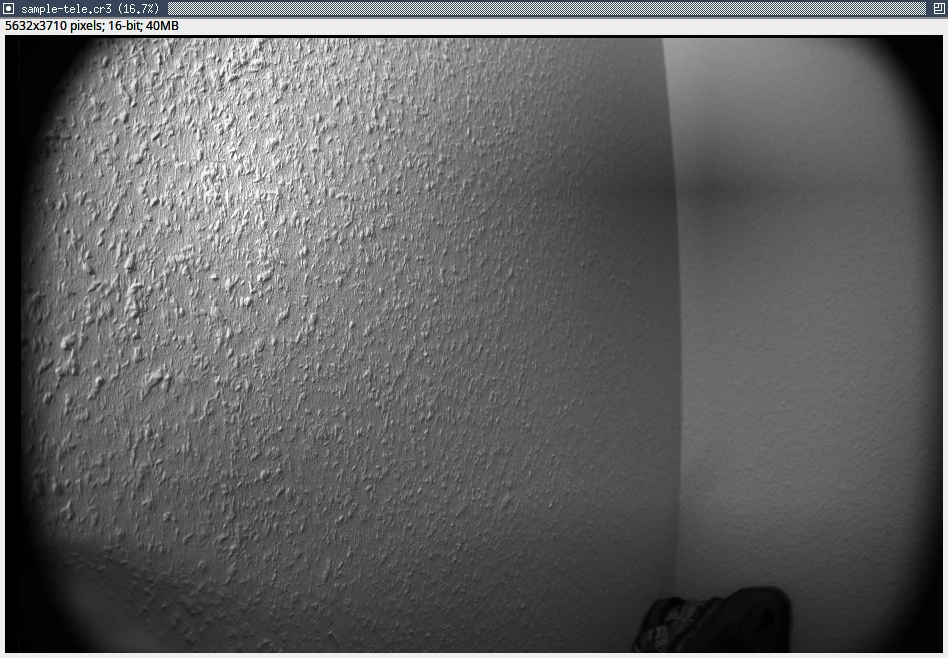
PowerShot G5 X Mark II sensor image with the display range set to 2048–6473. Screenshot from Photographer’s Fiji guide, by Carsten Hammer.
Sensor metadata
Image › Show Info… displays these properties when they are available in the capture. Recording a black level or white-balance gain does not apply it to the imported pixels.
| Property | Meaning |
|---|---|
CR3.CameraModel |
Camera model. |
CR3.BitDepth |
Sensor sample depth, separate from ImageJ’s 16-bit storage. |
CR3.CFA |
Bayer pattern at the full sensor origin. |
CR3.ActiveAreaLTRBInclusive |
Active rectangle: left, top, right, bottom. Coordinates start at zero; both end coordinates are included. |
CR3.BlackLevelRGGB |
Black levels in R, green-on-red-row, green-on-blue-row, B order. |
CR3.WhiteBalanceGainRGGB |
White-balance gains in the same four-channel order. |
CR3.WhiteLevel |
Recorded white level. |
Macro import
To import a file from an ImageJ macro:
run("CR3 Sensor Data...", "path=[/data/capture.cr3]");
Replace the path with your CR3 file. This command opens the sensor mosaic; use the separate script below for a color image.
Opening a color image
After installing the update site:
- Download open-cr3-color.groovy.
- Open it in Fiji’s Script Editor with Groovy selected.
- Run it and choose a CR3 file. Leave Develop RAW to RGB cleared for the embedded camera JPEG, or select it to develop the RAW data.
The script source and explanation are also available in the project documentation. The two choices use different processing pipelines, so the developed RGB image may differ from the camera JPEG. The camera JPEG can include the camera’s picture style and other corrections.
Supported files
The documented verification covers 14-bit, four-plane V1 configurations from the Canon EOS R, EOS RP, EOS M50 and PowerShot G5 X Mark II. The reference panel contains 15 lossless RAW captures and six three-level C-RAW captures. This describes the tested files and layouts, rather than every recording mode of those camera models.
Other sensor depths, V2 CRX and RAW bursts are outside that verified scope. See the decoder support and verification notes for the measurements and current limitations.
Troubleshooting
| Symptom | What to check |
|---|---|
| No CR3 Sensor Data… entry | Confirm the update site is enabled, apply its changes and restart Fiji. Check that Fiji is actually running Java 21 or newer. |
| Dark image, grayscale display or visible sensor borders | These can be expected for the full Bayer mosaic. Adjust the display limits as above, or use the color example for a developed view. |
| RAW import reports an unsupported or unreadable layout | Check the supported configurations. The color example can still open an embedded JPEG if one is present and readable; this supplies a preview rather than sensor data. |
For a reproducible bug report, include the plugin version, Fiji and Java versions, camera model, RAW/C-RAW mode and the complete error message.
For developers
The minimal Maven and Java example
reads the Bayer samples and counts distinct sensor values. It demonstrates the
data retained beyond an 8-bit image. Java ImageIO is part of the JDK; the CR3
reader is supplied by the io.github.carstenartur:cr3-imageio dependency.
See the ImageIO guide
for Maven setup, metadata and explicit output selection. Its ordinary
ImageIO.read(file) call develops RGB; request rawSensor() explicitly to work
with native sensor units. The ImageJ plugin source,
releases and
CR3 format reference
provide the implementation and technical details.